


WordPress multisite is a network of WordPress sites that share a single WordPress installation, a single database, and a single set of plugins and themes. It is the right solution for specific scenarios and the wrong choice for many others. This guide explains when to use it and how to set it up correctly.
When to Use WordPress Multisite
- Agency managing client sites: One dashboard, one update cycle, shared plugins and themes reduce overhead significantly.
- University or enterprise network: Each department gets its own sub-site with its own admins while IT controls the network.
- Multi-region business: One installation powers country-specific sites (uk.yourbrand.com, us.yourbrand.com) with shared core functionality.
- SaaS with user sub-sites: Each user gets their own WordPress sub-site provisioned automatically on registration.
When NOT to Use WordPress Multisite
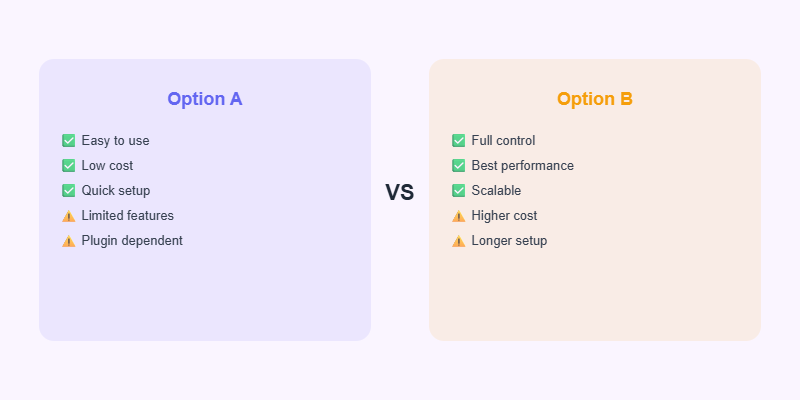
If your sites have different plugins, wildly different themes, or very different traffic levels, separate WordPress installations are almost always better. A problem in a multisite network can take down every site at once, and some plugins do not work correctly in a network context.
How to Set Up WordPress Multisite
Enable multisite by adding define(‘WP_ALLOW_MULTISITE’, true); to wp-config.php. Then go to Tools → Network Setup in your WordPress admin. Choose sub-domains (blog.yoursite.com) or sub-directories (yoursite.com/blog). Follow the setup instructions to update wp-config.php and .htaccess. Log back in and the Network Admin menu appears.
Start Your Project with Softnexis
WordPress development and AI automation for businesses worldwide.
WordPress multisite FAQ
When does a network of sites make sense?
Use one network when you manage many similar sites, such as franchise locations or regional brands, that share themes, plugins and users.
Can I move a site out of a network later?
Yes, but it takes careful export and import of content and users. Plan your structure before you start.
Further reading
Read the official Multisite documentation.